Call Transfer
Moves customers to the right person in seconds. No dropped calls, no fumbling, and no waiting on hold for a long time. Just clean handoffs your team can trust every single time.
- Transfer any call to any team member instantly
- Blind, warm, and consultative transfers built into the system
- Works with existing PBX, VoIP, and CRM systems seamlessly








How Does Call Transfer Work?
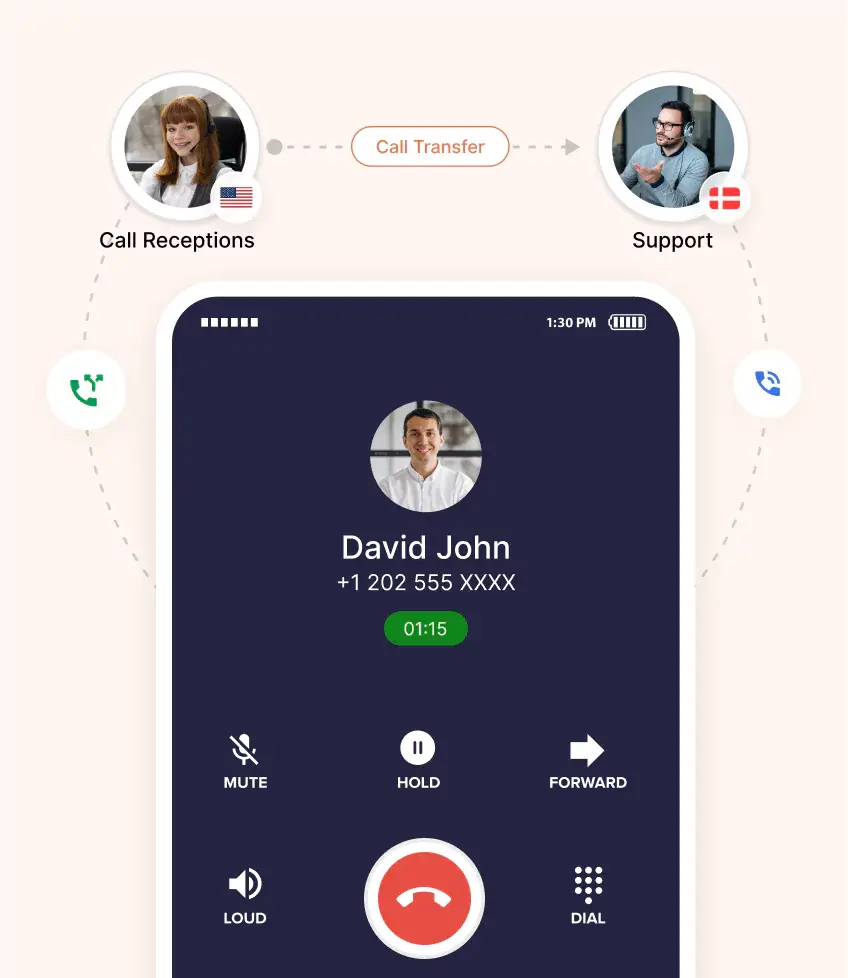
Call transfer moves a live conversation from one agent to another without disconnecting the caller.

An agent presses the transfer button, dials the recipient, and connects the caller. The call moves cleanly between two devices without any manual reconnection or interruption.

Manual transfers require an agent to click, dial, and hand off each time. Automated call transfers route calls automatically based on rules, saving reps significant time daily.

VoIP and hosted PBX systems handle transfers over the internet, not physical lines. That means faster handoffs, better call quality, and lower costs than legacy setups.
What are the Different Types of Call Transfers?
Different call transfer types serve different needs. Businesses pick the right one for each situation.
- Cold (or Blind) Call Transfer
Blind transfer calls happen when the agent transfers the caller without speaking to the recipient first. Fast, but the receiving agent has zero context about the caller. - Warm (or Attended) Call Transfer
Attended call transfer means the agent speaks with the recipient before handing over the caller. Context is shared, the recipient is ready, and the customer feels valued. - Consultative Call Transfer
Consultative transfers add a quick internal discussion. The agent briefs the recipient, confirms availability, and only then transfers the caller. Best for complex issues needing expert handoff. - Automatic Call Transfer
Automatic call transfer moves calls based on preset rules. When one agent is busy, the system routes the caller to the next available person without any manual step.
Why is Call Transfer Important for Businesses?
A reliable call transfer service reduces frustration, lifts productivity, and speeds up every customer resolution.

Calls get transferred to the right expert faster. Less time spent on off-topic queries means more calls handled per shift.

Customers get to the right person immediately, not after multiple transfers. Wait times shrink, and satisfaction climbs on every call.

Direct transfers to specialists mean issues get solved in one call. No back-and-forth, no repeated explanations, no wasted customer time.

Context passes cleanly between agents during warm transfers. Customers never repeat their story, and receiving agents know exactly what to do.

Fast transfers keep customers on the line. Long hold times or messy routing push callers to hang up, hurting revenue directly.

Getting to the right agent on the first try means issues get solved once. Customers do not need to call again.
What Features Work Alongside Call Transfer?
Call transfer software works best when paired with other calling tools that improve efficiency.

Where call transfer moves live calls, call forwarding sends unanswered ones to another number or voicemail. Both prevent missed opportunities.

Call hold pauses the conversation while agents check information or consult teammates. Customers hear on-hold music instead of dead silence.

Call queue lines up incoming calls until an agent is free. No caller gets rejected, and every one gets served.

Call waiting alerts agents when another call comes in. Reps decide whether to answer, transfer, or route to voicemail instantly.

Auto attendant greets callers and offers menu options before any human picks up. Great for filtering calls and routing efficiently.

Call recording captures every conversation for training, compliance, and quality reviews. Managers coach reps using real customer calls, not guesses.

IVR menus let callers self-select the right team before any transfer. Manual routing drops, and resolution speeds up across departments.

ACD routes calls to the most available or skilled agent automatically. Combined with transfer, callers always land where they belong.
Pricing
-

 Calling
- Pay Only for Numbers
- Voicemail
- Click to Dial
- Business Hours
Define operating hours for each number to route calls appropriately.
- Smart Failover System
If a call fails to complete, Attempt Manager surfaces it for retry on a number you've assigned to the campaign, improving call connection success rates.
-

 Messaging
 - SMS (Text messages) & MMS
- WhatsApp Business API
 Platform
- 2FA
Add an extra security layer by requiring a verification code in addition to your password.
- Desktop & Mobile Apps
-
Calling
- Unlimited Minutes (Includes Both Landline & Mobile Calling)
Shared pool of free calling minutes for your entire team. Valid for manual dialing to standard US/Canada numbers only.
- Forward to Device Automatically route incoming calls to your mobile or alternative device to never miss calls.
- Ring All Devices Ring simultaneously on all your logged-in devices (desktop, mobile, browser) for every call.
- Country Blocking Restrict outbound calls to specific countries to prevent unauthorized international dialing.
-
Messaging
-
100 SMS (Text Messages)
Standard A2P charges apply.
- SMS Templates Create and save message templates for one-click texting with consistent communication.
- Free Omnichannel Inbox


-

 Analytics
- Basic Report Analytics
- Call Logs (1 month) Access detailed records of all calls including duration, outcome, recordings, and participant information.
- Audit Logs Track all account changes and user actions for security, compliance, and accountability.
-
 Integrations
-
ZZapierSSlack50+WWebhook


 Popular
-
Calling
- Unlimited Minutes (Includes Both Landline & Mobile Calling)
Shared pool of free calling minutes for your entire team. Valid for manual dialing to standard US/Canada numbers only.
- Call Recordings Record and store calls for quality monitoring, training, and compliance.
- Multilingual IVR Offer IVR menu options in multiple languages to serve diverse customer bases.
- Call Distribution (Cascading) Route calls to agents in a priority sequence until someone answers.
- Custom Greetings Upload personalized welcome messages for callers to hear when they reach your number.
-
Messaging
-
500 SMS (Text Messages)
Standard A2P charges apply.
-
Analytics
- Reports / Analytics Get detailed insights and summarized analytics on team's calling performance.
- AI Voicemail Transcription Automatically convert voicemail audio to text for faster message review.
- Call Logs (Lifetime)
- Role Based Access Control Assign specific roles with tailored permissions to control what each user can view and manage.
- Call Transcription
-
Integrations
-
HHubSpotSSalesforcePPipedrive50+ZZoho
-
Calling
-
Unlimited Minutes (Includes Both Landline & Mobile Calling)
Shared pool of free calling minutes for your entire team. Valid for manual dialing to standard US/CA numbers only.
- Smart DID Routing Automatically routes calls to the best available agent based on real-time data.
- Multilevel IVR Create multi-step phone menus to route callers to the right department or person automatically.
- Call Blocking Block unwanted callers and spam numbers to keep your team focused on quality conversations.
- Holiday Routing Configure special call handling and greetings for holidays and non-business days.
- CRM-Based VIP Routing Route calls automatically to the correct contact/lead owner based on CRM information.
-
Messaging
-
1000 SMS (Text Messages)
Standard A2P charges apply.
- Analytics
- Call Summary
-
 Enterprise
- Single Sign-On (SSO) Log in once to access CallHippo and all integrated tools with your company credentials.
- Custom Integrations Build advanced integrations with your systems—add click-to-call anywhere, sync call data with custom logic, and create workflows specific to your business.
- Dedicated Account Manager Resolve account queries efficiently with dedicated account manager.
- Personalized Onboarding Experience personalized onboarding for a tailored start.
- 24×7 & Phone Support
-
Integrations
-
HHubSpotSSalesforceZZoho50+ZZendesk
What are Call Transfer Best Practices and Etiquette?
Great call transfers depend as much on etiquette as they do on technology.
Preparing Before Transferring a Call
Confirm the recipient handles this type of query. Check availability. Have the caller’s issue summarized in one sentence before initiating any transfer. Preparation prevents dropped calls and repeat explanations.
Informing the Caller
Always tell the caller who they will speak with and why. Share the recipient’s name and role. Give a quick reason for the transfer, so customers do not feel dismissed or bounced around.
Verifying Recipient Availability
Never blind transfer to someone who might be busy or unavailable. A quick chat first confirms they can take the call. Prevents dead-end transfers that frustrate customers and hurt brand trust immediately.
What are the Common Call Transfer Challenges (and Fixes)?
Every call transfer system faces predictable challenges. Here are four common ones plus the fix.
Call Drops During Transfer
Calls drop when networks fail, agents miss steps, or old PBX systems glitch mid-handoff.
Fix: Move to a cloud-based call transfer system with automatic reconnection and monitored uptime, so failed transfers get caught and recovered instantly.
Misrouted or Wrong Transfers
Agents send callers to the wrong department because directories are outdated or unclear.
Fix: Maintain a live-updated team directory inside the call transfer software, with clear tags for skills, shifts, and languages. Correct routing happens on the first try.
Delayed Transfers and Busy Lines
Callers wait forever because everyone is busy on another call.
Fix: Use automatic call transfer with intelligent routing that finds the next available agent instantly. Combine with call queue features to hold the caller with context, not silence, until connection.
Technical Glitches with PBX or VoIP Systems
Legacy PBX or unstable internet causes freezes, echoes, and dropped audio during transfers.
Fix: Choose a call transfer service running on modern VoIP infrastructure with redundant servers and 99.99 percent uptime guarantees. Downtime becomes rare, and quality stays consistent.
How to Choose a Call Transfer Solution?
Choosing call transfer software comes down to four decisions that impact daily use and cost.
Evaluate Your Business Needs
Start with call volume, team size, and typical transfer scenarios. A five-person team needs different capabilities than a 200-seat call center. Match the software to how transfers actually happen daily.
Look for Ease of Use and Training Requirements
A clean interface reduces training time from weeks to hours. Agents should transfer calls in one or two clicks. Complex systems slow down reps and frustrate customers listening on the line.
Check for Reliability and Uptime Guarantees
Look for 99.99 percent uptime backed by SLAs, not marketing promises. Failed transfers cost customers and revenue directly. Reliable infrastructure with redundant servers ensures transfers happen even during outages elsewhere.
Integration with Existing Communication Tools
Verify the software connects with your CRM, helpdesk, and existing phone system. Poor integration forces agents to switch tabs mid-transfer, slowing every call and losing valuable context between systems.
How to Increase Sales with Advanced Call Transfer?
A smart call transfer system helps sales teams close faster and lose fewer leads.
One-Touch Transfer for Faster Lead Handling
Reps route hot leads to closers with a single click. No fumbling through directories or waiting on hold. Faster handoffs mean warm leads reach decision-makers while intent is still peak.
Automated Transfers for High-Volume Call Centers
Automatic call transfer routes hundreds of inbound sales calls without any manual step. Reps focus on conversations, not routing. High-volume teams handle two or three times the load easily.
Tracking Transfer Efficiency to Improve Sales Outcomes
Transfer analytics show which handoffs convert and which fail. Managers spot bottlenecks fast, coach reps on weak handoffs, and adjust routing rules to lift pipeline outcomes every quarter.

“Thanks to the CallHippo team, we were able to resolve a tough issue with flagged phone numbers. As an EdTech startup, outbound calls are crucial for us. CallHippo's solution not only improved our attestation score but also boosted our answer rates and overall customer experience.”

Frequently Asked Questions
-
Call transfer means moving an ongoing call from one agent, phone, or device to another without disconnection.
-
Go to your phone settings, find "Call Settings" or "Phone Settings," look for "Call Transfer" or "Call Forwarding," and select "Turn Off" or "Disable." On some phones, you can dial a code like *73 to turn it off.
-
Call forwarding automatically sends incoming calls to another number before you even answer - it's set up in advance. Call transfer happens during an active call when you manually send the caller to someone else.
-
The call gets transferred back to you, or to a fallback number or voicemail depending on your settings.
-
Yes. CallHippo transfers calls to teammates worldwide, on any device, with no extra setup required.
-
No. Call transfer works entirely through the CallHippo app on any laptop, mobile phone, or desk headset.
-
No. Call transfer is included in every CallHippo Pro Suite plan at no additional cost, across all number types.

Get International Phone Numbers
 Canada Virtual Phone Number
UK Virtual Phone Number
Canada Virtual Phone Number
UK Virtual Phone Number
 US Virtual Phone Number