
Attempt Manager: Track Every Attempt in Dialer
Track every call attempt across every lead with CallHippo’s Attempt Manager. Built into your auto dialer to help sales, support, and BPO teams organize campaigns, retry smart, and never lose a prospect.
- Track up to 10 attempt stages per lead
- Assign campaign lists to specific agents or teams
- Works with web dialer and desktop app instantly
 No credit card required.
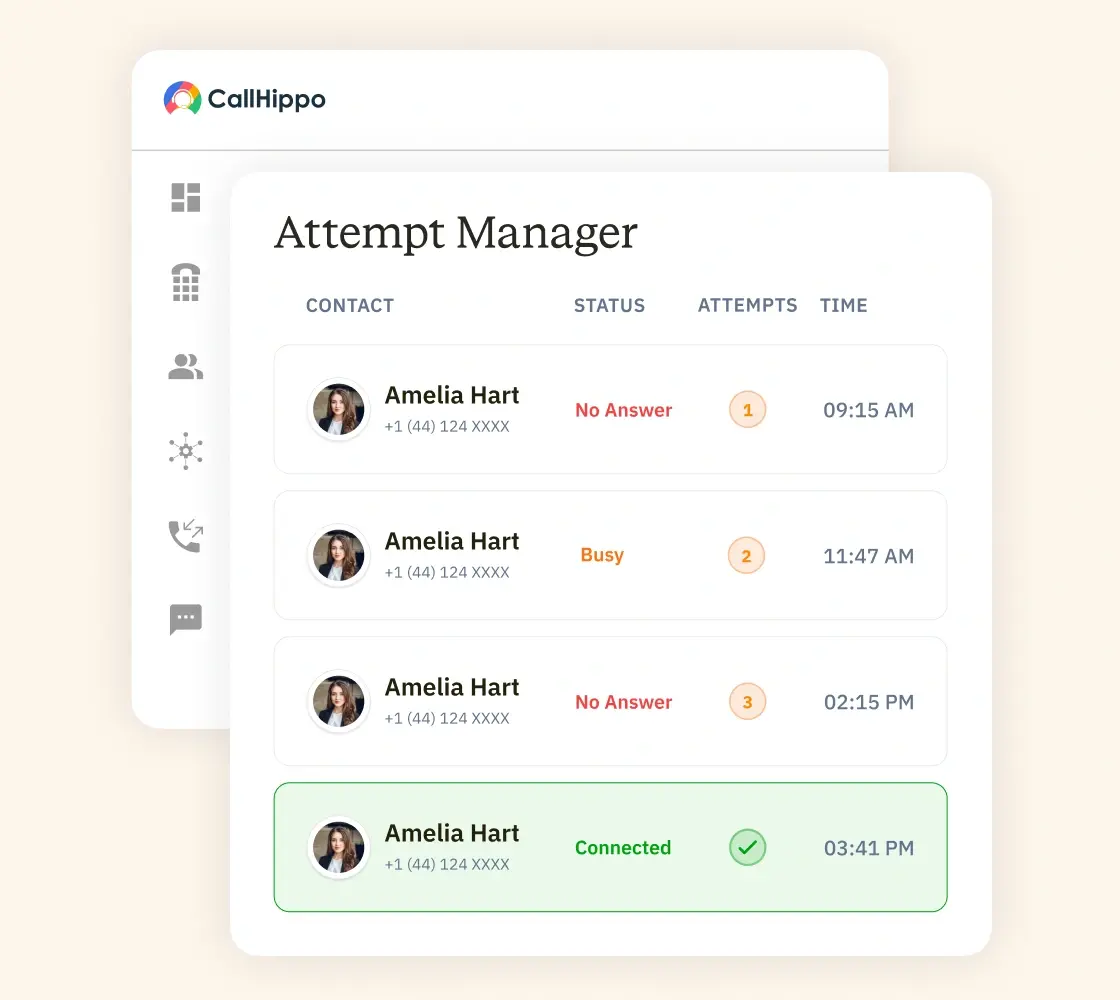







How Does CallHippo’s Attempt Manager Work?
The Attempt Manager sits inside the Auto Dialer and manages every call attempt automatically.

Build a campaign list inside the Auto Dialer with all your target contacts. Add numbers manually or import from CSV. Every list becomes trackable in seconds.

Assign each campaign list to a specific agent, team, or department. Leads route automatically to the right person, so nothing sits unassigned or forgotten.

Reps dial through the list, and the Attempt Manager logs every call with its disposition. Contact advances to the next attempt stage only when the rep clicks the call icon inside Attempt Manager
What are the Benefits of an Attempt Manager?
Call attempt management removes guesswork, prevents drop-offs, and keeps campaign progress visible always.

Every attempt gets logged so nothing falls through the cracks. Retries happen when reps work through the list.

The tool caps at 10 attempt stages and shows the attempt count clearly. Protects the brand from complaints and TCPA violations.

See every attempt for every lead in one dashboard. Managers know exactly where each contact stands without asking anyone.

Group contacts by campaign, region, or team. Switching between lists takes one click, and every list stays independently tracked.

Assign lists to specific agents based on skills, shifts, or territories. Workloads stay balanced, and no lead is left unassigned.

Every call attempt syncs to your CRM automatically. Reps see full contact history before dialing and log outcomes without switching tabs.
What are the Key Features of the Attempt Manager?
CallHippo’s Attempt Manager ships with everything sales and support teams need to run smart campaigns.

Configure up to 10 attempt stages per lead. Each stage triggers a fresh retry, giving reps multiple chances to connect.

Create, edit, pause, and archive campaign lists from one dashboard. Managers stay in control of every ongoing calling initiative.

Assign entire lists or specific leads to users, teams, or departments. Perfect for territory-based selling and shift-based support operations.

Pick which CallHippo number the campaign dials from. Match caller IDs to region or team for higher pickup rates instantly.

Log every call outcome with dispositions like Busy, No Answer, or Voicemail. Retry rules trigger based on the disposition selected.
Every attempt syncs with the contact record and connected CRM. Full history stays visible to every rep and manager instantly.

Reps switch between active campaign lists in one click. No need to log out or restart the auto-dialer session.

Mark any contact as complete to remove them from active lists. Prevents accidental re-dials and keeps the campaign clean.
Pricing
-

 Calling
- Pay Only for Numbers
- Voicemail
- Click to Dial
- Business Hours
Define operating hours for each number to route calls appropriately.
- Smart Failover System
If a call fails to complete, Attempt Manager surfaces it for retry on a number you've assigned to the campaign, improving call connection success rates.
-

 Messaging
 - SMS (Text messages) & MMS
- WhatsApp Business API
 Platform
- 2FA
Add an extra security layer by requiring a verification code in addition to your password.
- Desktop & Mobile Apps
-
Calling
- Unlimited Minutes (Includes Both Landline & Mobile Calling)
Shared pool of free calling minutes for your entire team. Valid for manual dialing to standard US/Canada numbers only.
- Forward to Device Automatically route incoming calls to your mobile or alternative device to never miss calls.
- Ring All Devices Ring simultaneously on all your logged-in devices (desktop, mobile, browser) for every call.
- Country Blocking Restrict outbound calls to specific countries to prevent unauthorized international dialing.
-
Messaging
-
100 SMS (Text Messages)
Standard A2P charges apply.
- SMS Templates Create and save message templates for one-click texting with consistent communication.
- Free Omnichannel Inbox


-

 Analytics
- Basic Report Analytics
- Call Logs (1 month) Access detailed records of all calls including duration, outcome, recordings, and participant information.
- Audit Logs Track all account changes and user actions for security, compliance, and accountability.
-
 Integrations
-
ZZapierSSlack50+WWebhook


 Popular
-
Calling
- Unlimited Minutes (Includes Both Landline & Mobile Calling)
Shared pool of free calling minutes for your entire team. Valid for manual dialing to standard US/Canada numbers only.
- Call Recordings Record and store calls for quality monitoring, training, and compliance.
- Multilingual IVR Offer IVR menu options in multiple languages to serve diverse customer bases.
- Call Distribution (Cascading) Route calls to agents in a priority sequence until someone answers.
- Custom Greetings Upload personalized welcome messages for callers to hear when they reach your number.
-
Messaging
-
500 SMS (Text Messages)
Standard A2P charges apply.
-
Analytics
- Reports / Analytics Get detailed insights and summarized analytics on team's calling performance.
- AI Voicemail Transcription Automatically convert voicemail audio to text for faster message review.
- Call Logs (Lifetime)
- Role Based Access Control Assign specific roles with tailored permissions to control what each user can view and manage.
- Call Transcription
-
Integrations
-
HHubSpotSSalesforcePPipedrive50+ZZoho
-
Calling
-
Unlimited Minutes (Includes Both Landline & Mobile Calling)
Shared pool of free calling minutes for your entire team. Valid for manual dialing to standard US/CA numbers only.
- Smart DID Routing Automatically routes calls to the best available agent based on real-time data.
- Multilevel IVR Create multi-step phone menus to route callers to the right department or person automatically.
- Call Blocking Block unwanted callers and spam numbers to keep your team focused on quality conversations.
- Holiday Routing Configure special call handling and greetings for holidays and non-business days.
- CRM-Based VIP Routing Route calls automatically to the correct contact/lead owner based on CRM information.
-
Messaging
-
1000 SMS (Text Messages)
Standard A2P charges apply.
- Analytics
- Call Summary
-
 Enterprise
- Single Sign-On (SSO) Log in once to access CallHippo and all integrated tools with your company credentials.
- Custom Integrations Build advanced integrations with your systems—add click-to-call anywhere, sync call data with custom logic, and create workflows specific to your business.
- Dedicated Account Manager Resolve account queries efficiently with dedicated account manager.
- Personalized Onboarding Experience personalized onboarding for a tailored start.
- 24×7 & Phone Support
-
Integrations
-
HHubSpotSSalesforceZZoho50+ZZendesk
Why Do Call Attempts Fail? (Common Dispositions)
Not every call connects on the first try. Here are the five most common reasons why.
Busy
The line was engaged, so the call did not go through. The rep tags it as Busy. The contact stays in the list for the next attempt.
No Answer
The phone rang, but no one picked up. The rep tags it as “No Answer”. The contact remains in the list, ready to be called again.
Voicemail
The call rolled to voicemail. The rep can leave a message and tags the call as Voicemail. The contact stays visible for the next attempt.
Wrong Number
The number belongs to someone else or is invalid. The rep tags it “Wrong Number” and can mark “Complete” to remove the contact permanently.
Do Not Call
The contact asked not to be called again. The rep tags DNC and marks the contact complete, keeping the campaign compliant with TCPA and DNC rules.
How to Set Up the Attempt Manager?
Setting up the Attempt Manager takes four quick steps inside your CallHippo dashboard.
Open Auto Dialer → Attempt Manager
Log into your CallHippo account. Navigate to the Auto Dialer section from the sidebar. Click on Attempt Manager to open the campaign dashboard, where every list is managed.
Add a Campaign List
Click Create New List, name your campaign, and choose the CallHippo number for outbound calls. Assign the list to a specific team member or entire department in seconds.
Load Contacts and Start Calling
Import contacts through CSV upload or add them manually. Reps click the call icon to place calls. Each click moves the contact one stage forward (up to Attempt 10).
Mark Contacts Complete
Once a lead converts or is no longer needed, mark them as complete. The contact drops out of active rotation, keeping the campaign list clean and reps focused only on live leads.
How the Attempt Manager Works With the Auto Dialer
The Attempt Manager runs inside every Auto Dialer session, both web and desktop.
Web Dialer vs Desktop App
The Attempt Manager works identically across the web dialer and desktop app. Reps switch between platforms without losing progress, and every attempt syncs in real time across devices.
Assigning Lists Across Your Team
Managers assign campaign lists to specific reps or entire teams from one screen. Rebalancing workloads takes seconds, and no lead sits without an owner for even a day.
Tracking Status From New Lead to Complete
Every contact moves through stages: New, In Progress, Attempted, and Complete. Managers see the full pipeline visually, and reps know exactly which leads to prioritize next.
Best Practices for Multi-Attempt Calling Campaigns
Getting real value from an Attempt Manager depends on following a few smart practices.
Space Your Attempts Across Days
Do not call the same lead three times in one hour. Space attempts across different days and times. Prospects respond better when calls feel intentional, not spammy or aggressive.
Use the 10-Stage Limit Wisely
Ten attempts is the ceiling, not the goal. Most leads convert or reject within four to six touches. Save the extra stages for high-value prospects who deserve extended effort.
Route Lists to the Right Agents
Assign campaigns based on rep skills, language, or account size. Enterprise leads deserve senior AEs. SMB volumes route to newer reps. Right assignment drives higher conversion rates immediately.
Log Dispositions Consistently
Reps must log every call outcome accurately. Missing or inconsistent dispositions break the retry logic, damage reporting, and cause the same lead to be re-dialed unnecessarily many times.
Who Should Use an Attempt Manager? (Use Cases)
Any team running outbound calls at volume benefits from structured call attempt management daily.
Outbound Sales Teams
SDRs and AEs use the Attempt Manager to work through prospect lists systematically. Every touch gets logged, every retry is intentional, and no warm lead falls silent.
Support and Follow-Up Teams
Customer success teams use it for renewal outreach, satisfaction surveys, and issue follow-ups. Consistent attempts ensure every customer hears back, even during high-volume support seasons.
BPOs Running Calling Campaigns
BPOs and call centers manage dozens of campaigns simultaneously. The Attempt Manager keeps every list separate, every agent accountable, and every client’s targets met on time.

“Thanks to the CallHippo team, we were able to resolve a tough issue with flagged phone numbers. As an EdTech startup, outbound calls are crucial for us. CallHippo's solution not only improved our attestation score but also boosted our answer rates and overall customer experience.”

Frequently Asked Questions
-
An Attempt Manager tracks and controls every call attempt made to a lead inside an auto dialer.
-
An attempt is any dial made. A retry is a repeat dial after the previous one failed to connect.
-
Most teams stop between 4 and 6 attempts. Attempt Manager supports up to 10 stages if needed.
-
No. Attempt Manager does not run automatic retries. Reps decide when to retry. Dispositions log outcomes but do not trigger auto-retries.
-
Contacts marked Do Not Call are excluded from future dialing.
-
Attempt Manager works with the auto dialer inside both the web dialer and desktop app, seamlessly across devices.
-
Yes. Every lead shows a full attempt history with timestamps, dispositions, and the agent who placed each call.
-
Attempt Manager is included in CallHippo plans that support the Auto Dialer feature. Check your plan for specifics.
-
Yes. Assign lists to individual agents, entire teams, or departments directly from the Attempt Manager dashboard in seconds.
-
Yes. Attempt Manager runs identically on both platforms, and every attempt syncs in real time across every device.
-
Yes. One click marks any contact complete, removing them from active dialing rotations across every campaign list.

